








How to Print a Color by Number PDF
A quick setup guide for a readable worksheet, with the color key still on the page.
Print a readable color by number worksheet
Start with the PDF button beneath a worksheet in our color by number library. PDF keeps the page layout together; PNG is useful when you want to place the image inside a document. Download the file before printing rather than printing a screenshot of the website. A screenshot can include buttons and shrink the numbers until they are hard to read.
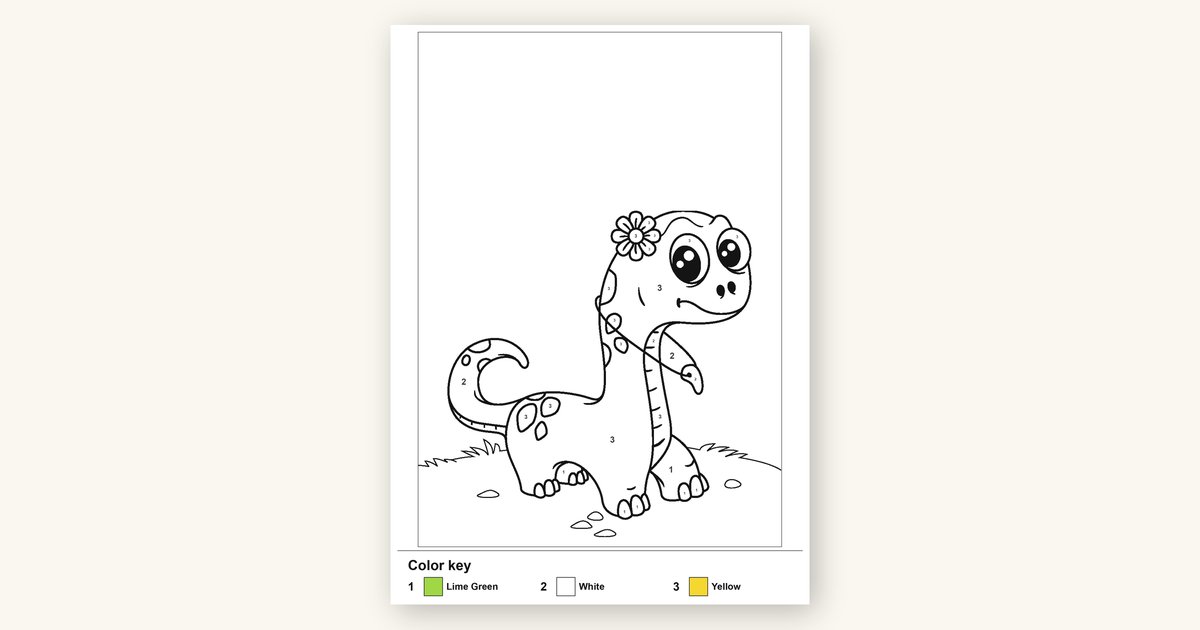
Choose the paper size actually loaded in your printer, usually A4 or US Letter. Check the preview before using paper: the full numbered key and every edge of the picture should be visible. Start at actual size. If the preview clips an edge, use fit to printable area. Avoid several pages per sheet when small numbered regions would become difficult to color.
Plain white printer paper is a good starting point for crayons and colored pencils. If you use markers, put scrap paper underneath and test one corner for bleed-through. Print one page first to check the numbers before making copies for a group. Keep the color key on the worksheet; children need it to decide which color belongs in each region.
Try this at the table
-
Download the PDF
Choose a worksheet and use its Print PDF button.
-
Check the print preview
Match your paper size and keep the entire key visible.
-
Test one copy
Check small numbers and try your crayons before printing a class set.
Frequently asked questions
Should I print the PDF or PNG?
Why are the numbers tiny?
Why is the key cut off?
Do I need a color printer?
Can I print several copies?
Pick your next printable

Start with a page that feels manageable
Pick a subject your child likes, then print the worksheet and keep its color key nearby.
Browse color by number pages